How to Tell If an Image Was AI Generated — 7 Methods That Actually Work in 2026
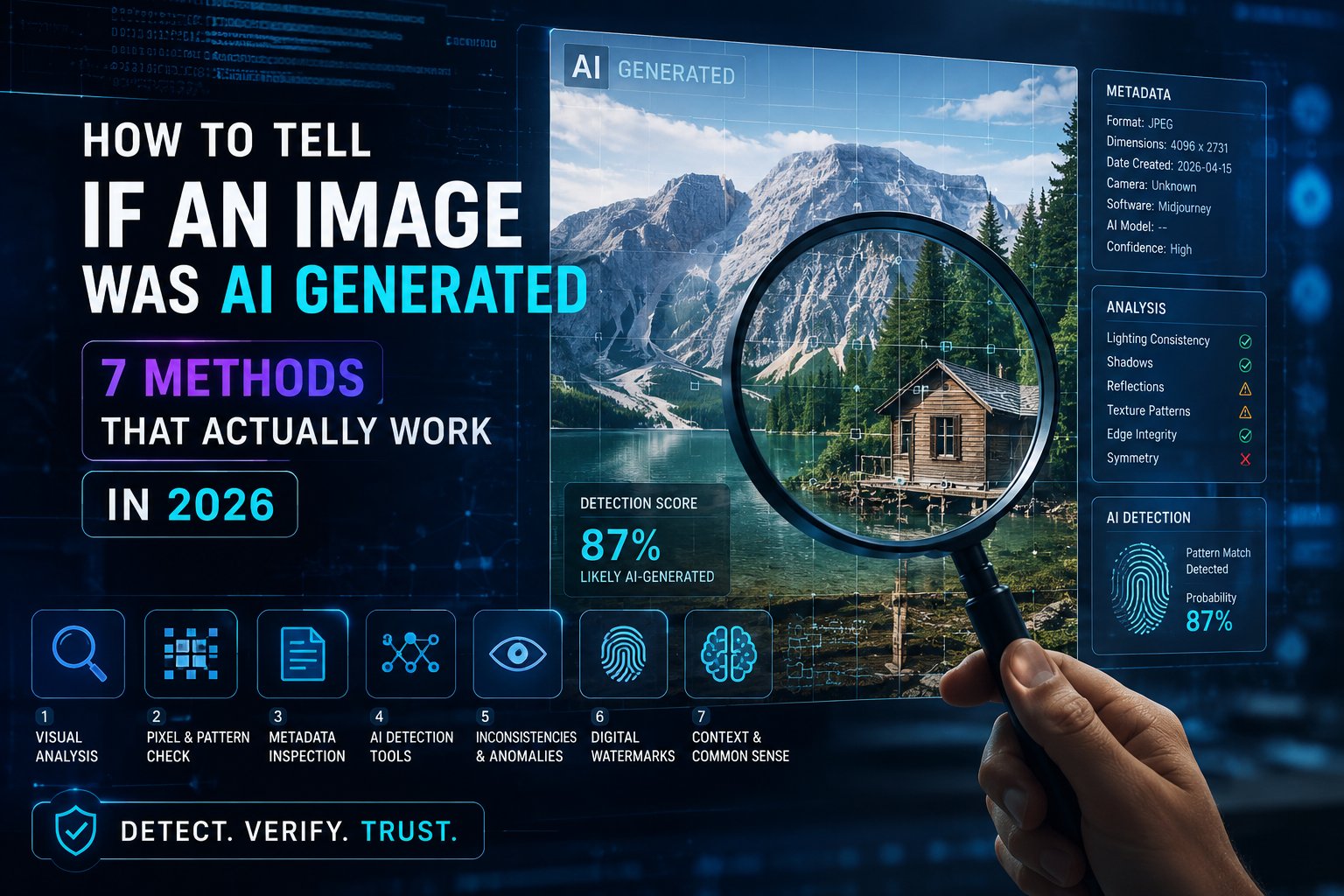
AI image generators have become so advanced that spotting a fake by eye alone is increasingly unreliable. In 2026, even experts are fooled. But there are seven proven methods — from reading hidden metadata to using specialised detection tools — that can tell you with confidence whether an image was made by a human or a machine.
Method 1: Check the Metadata (Most Reliable)
The most reliable indicator is the image’s metadata — hidden data embedded inside the file itself. AI tools like DALL-E, Adobe Firefly, and Midjourney all embed identifying information in the EXIF, XMP, or C2PA fields of the image.
How to check:
- Upload to contentcredentials.org to check for C2PA credentials
- Use ExifTool or our free metadata inspector to read all embedded data
- Look for fields like
Software,CreatorTool, orGeneratorModel
If metadata has been stripped, this method won’t work — which is why the other methods matter.
Method 2: Look for the Visual Tells
Despite massive improvements, AI generators still make characteristic mistakes in 2026:
- Hands and fingers — extra digits, fused fingers, or impossible angles
- Text in the image — garbled, nonsensical, or stylistically inconsistent lettering
- Ears and teeth — often asymmetrical or anatomically incorrect
- Background details — repeated patterns, impossible geometry, or objects that don’t make sense
- Jewellery and accessories — earrings that don’t match, glasses that fade into skin
- Hair near edges — often blends unnaturally into backgrounds
Method 3: Use an AI Detection Tool
Several tools are specifically trained to detect AI-generated images:
- Hive Moderation — high accuracy on photorealistic AI images
- AI or Not — fast browser-based detection
- Illuminarty — supports multiple AI generator types
- Google’s SynthID Detector — detects Google Imagen and Gemini outputs specifically
Note: No detector is 100% accurate. Use multiple methods for important decisions.
Method 4: Reverse Image Search
Run the image through Google Images, TinEye, or Bing Visual Search. If an image was AI-generated from a custom prompt, it should return no exact matches. However, images created from common prompts may appear on AI art platforms like Midjourney galleries or Civitai.
Method 5: Check Lighting and Shadow Consistency
AI models still struggle with physics. Look for:
- Shadows that fall in different directions from the same light source
- Reflections that don’t match the environment
- Eyes that catch light inconsistently between the two
- Objects that cast shadows on surfaces that aren’t there
Method 6: Examine the Context Carefully
AI images often have a subtle “uncanny valley” quality to the overall composition. The subject may be perfect while the background is strangely empty, overly busy, or visually incoherent. Real photographs carry imperfection — dust, motion blur, depth of field falloff — that AI images often lack or exaggerate.
Method 7: Check Platform Labels
In 2026, major platforms are required to label AI-generated content:
- Facebook and Instagram — “Made with AI” label on images containing C2PA credentials
- LinkedIn — AI content disclosure policy for professional images
- YouTube — mandatory disclosure for AI-generated video thumbnails
- Google Images — “AI-generated” badge on images with verified C2PA metadata
What If the Metadata Has Been Removed?
Metadata can be stripped — intentionally or when images are processed through compression, editing, or social media upload. If an image has no metadata and passes visual inspection, it becomes significantly harder to verify with certainty.
This is why understanding metadata — both how to read it and how to remove it when needed — is essential for anyone working with images professionally.
Need to Remove AI Metadata from Your Own Images?
Our free browser-based tool strips all AI metadata — C2PA, EXIF, XMP — in one click. No upload required.