How to Remove Midjourney Metadata from Images (Complete Guide 2026)
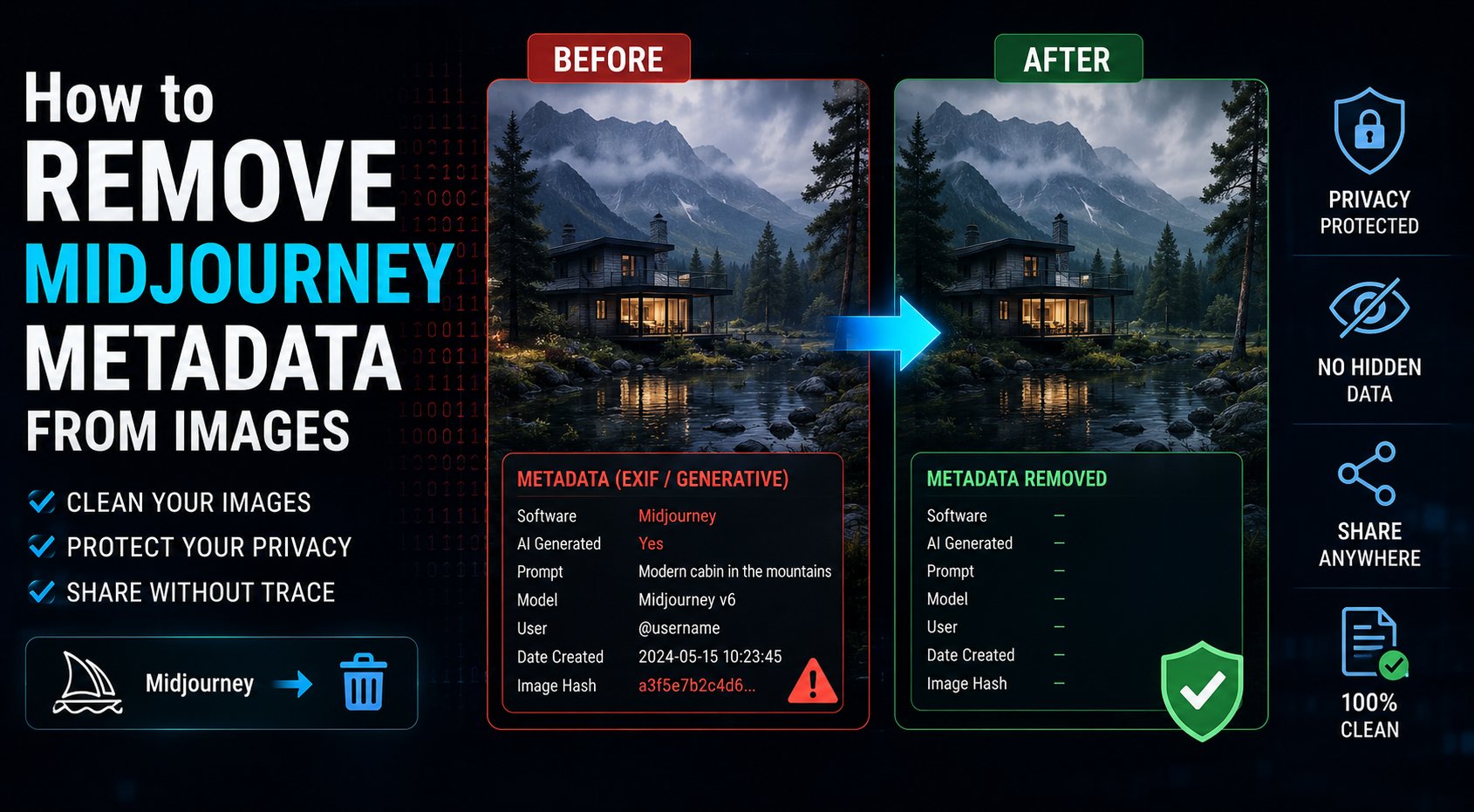
Every image you create in Midjourney carries hidden metadata — version numbers, generation parameters, and in some cases fragments of your prompt. If you are sharing Midjourney images professionally or submitting them to platforms that scan for AI metadata, here is exactly what to do.
What Metadata Does Midjourney Embed?
When you download an image from Midjourney (via the Discord bot or midjourney.com), the file contains:
- Software field: Identifies the image as created by Midjourney, including version (e.g., “Midjourney v7”)
- XMP:CreatorTool: Generation engine and version string
- XMP:HistorySoftwareAgent: Detailed Midjourney version identifier
- ImageDescription: May contain the prompt or job ID in some versions
- Unique ID fields: Job identifiers that can be used to trace the image back to your Midjourney account
Why Remove Midjourney Metadata?
- Platform submission: Stock sites, ad platforms, and news agencies increasingly reject images with AI metadata
- Client delivery: Some clients contractually require metadata-clean deliverables
- Privacy: Job IDs can potentially be used to identify your Midjourney account
- Professional standards: Agencies and brands maintaining AI content policies
- Social media: Facebook and Instagram auto-label images with Midjourney metadata as “Made with AI”
How to Remove Midjourney Metadata — 3 Methods
Method 1: SmartAI Metadata Remover (Fastest)
Our free browser tool removes all Midjourney metadata in one step — no installation, no upload, works on both JPEG and PNG.
- Visit the tool page
- Drop your Midjourney image onto the tool
- Click Remove Metadata
- Download the clean file
Method 2: ExifTool (Command Line)
exiftool -all= your-midjourney-image.jpg -overwrite_originalTo process a whole folder of Midjourney exports:
exiftool -all= -r /Downloads/Midjourney/ -overwrite_originalMethod 3: Photoshop Save for Web
- Open the image in Photoshop
- File → Export → Save for Web (Legacy)
- In the Metadata dropdown, select None
- Save
Note: This removes EXIF and basic XMP but may not remove all Midjourney-specific fields. Use Method 1 for complete removal.
Does Removing Metadata Break the Image?
No. Metadata is entirely separate from the image pixel data. Removing it does not affect image quality, resolution, colour profile, or any visual aspect of the image. The file may be slightly smaller after stripping (metadata can add 10-50KB to a file), but the image is identical visually.
How to Verify Midjourney Metadata Is Gone
- Right-click the processed image → Properties → Details
- The Software, Creator, and Description fields should be blank
- Alternatively, drag the image to contentcredentials.org — it should show no credentials
Remove Midjourney Metadata — Free, Instant
Browser-based, no upload. Removes all Midjourney version info, job IDs, and generation metadata in seconds.